Open Graph image examples: 3 layouts for a product launch
Compare three original Open Graph image layouts, copy a metadata example, and check the image URL and crop before sharing your product or article.
Match the image to the page being shared
A product page preview should explain the product's task; an article preview should identify the question it answers. Use a legible headline, a recognizable brand mark, and a visual that supports the destination. A homepage logo alone rarely explains why someone should open a specific guide.
The following three layouts are original, downloadable SVG design examples. They use a 1200 × 630 canvas as a practical starting point. Open Graph itself does not require that size, and the platform displaying the preview decides how to crop or show it. Export a raster PNG or JPEG for a broadly compatible shared image; the SVG files are editable design sources.
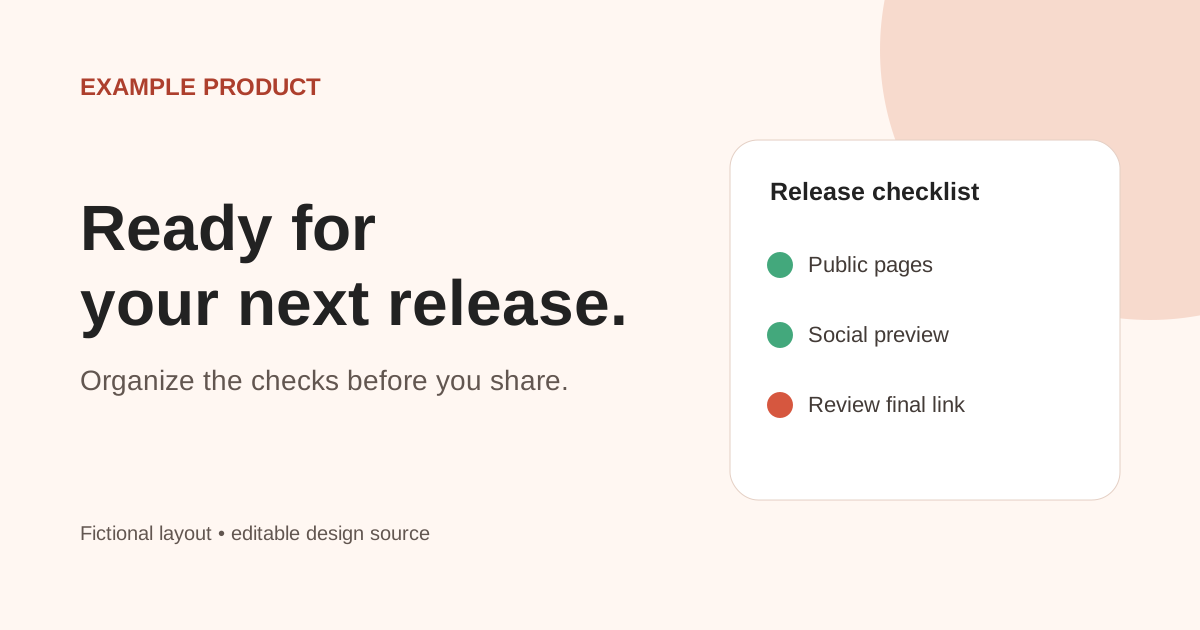
Example 1: a task-focused product preview
Use this layout when the interface can make the outcome obvious. Choose one part of a screenshot and crop out account details. Keep the product name visible, but let the useful action carry the headline. Avoid tiny dashboards with text that becomes unreadable in a feed.
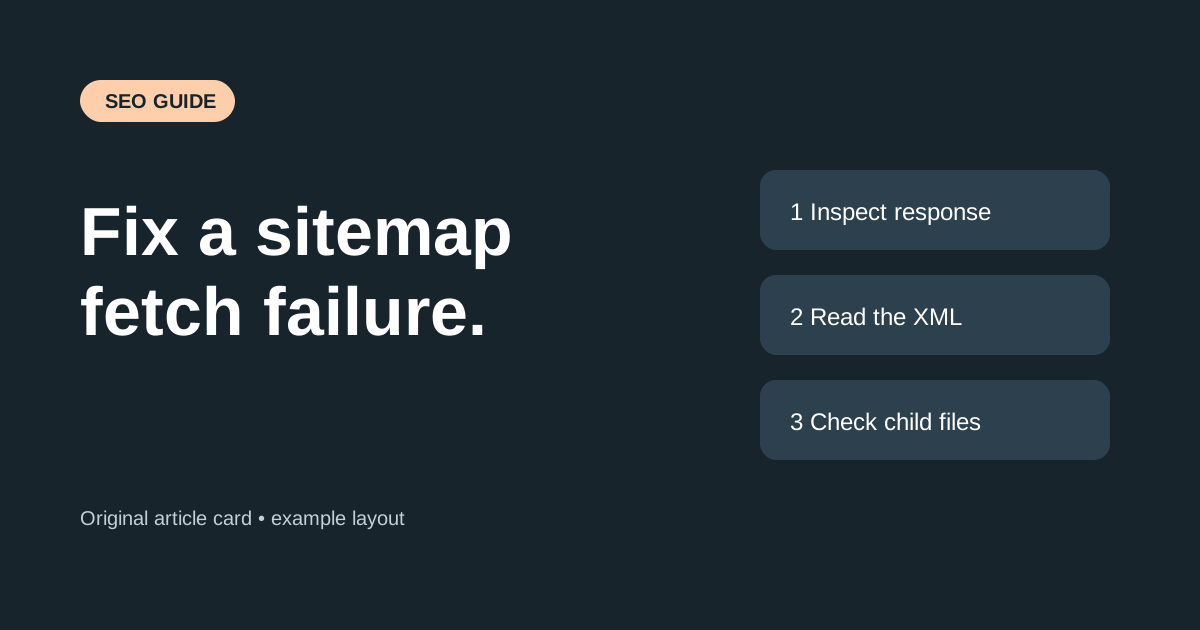
Example 2: an article preview
For a troubleshooting article, the reader needs to recognize the issue. Use the same problem wording as the article headline, then a small supporting diagram or a short sequence. Keep decorative code short enough to read; the complete commands belong in the article.
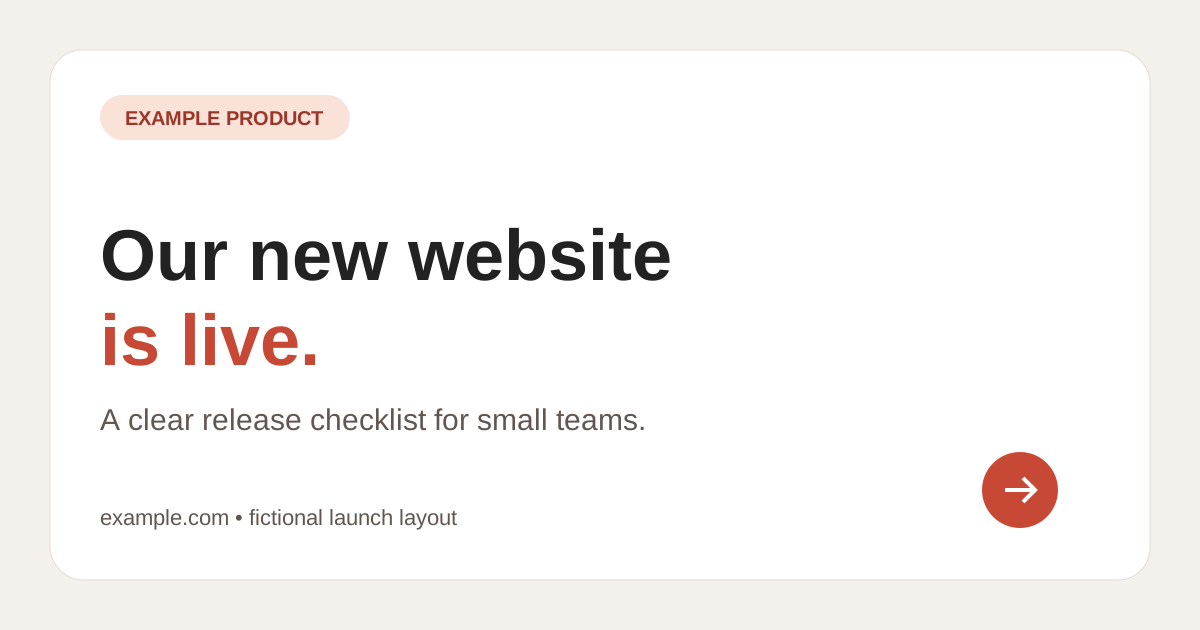
Example 3: a launch announcement
A launch graphic should be useful after the launch day too. Include the product identity and actual purpose rather than only a date or a coming-soon label. If the link leads to an early-access page, say early access. If it leads to a paid product, avoid implying unrestricted free access.
Add metadata to the shared page
Use an absolute public image URL that returns an actual image. Put metadata in the initial HTML when possible so a sharing crawler does not need to run your application. Set the page URL to its intended canonical address.
<meta property="og:title" content="Example product — organize release checks" />
<meta property="og:description" content="Review your release tasks in one clear checklist." />
<meta property="og:type" content="website" />
<meta property="og:url" content="https://example.com/" />
<meta property="og:image" content="https://example.com/social/product.png" />
<meta property="og:image:width" content="1200" />
<meta property="og:image:height" content="630" />
<meta property="og:image:alt" content="Release checklist example" />
<meta name="twitter:card" content="summary_large_image" />Check readability, responses, and caches
- View the image at a small feed-preview size. Can you still read the main message?
- Keep essential text and logos away from the edges. Inspect an actual preview on the destination platform because crops vary.
- Fetch the page while signed out and confirm the metadata is present in the response.
- Open the image URL directly. Confirm it returns an image, with no login redirect, HTML fallback, or CDN challenge.
- After replacing an image, use the destination platform's preview refresh tools where available. A correct current image can coexist with an older cached card.
Ready for a pre-launch audit?
Run the public analyzer and get a prioritised report for the URL you are about to share.
Run the SEO audit